A clear path from a new customer
to an organized workspace.
See how customers, forms, appointments and your team fit together in ARoute. This walkthrough uses a local demo account and test data. Email addresses are hidden in every screenshot.
Start the walkthrough ↓Your workspace at a glance
After signing in, your dashboard brings together workspace activity, notifications and links to your everyday tools. The sections available to you depend on your permissions.
Find your way
Use the sidebar to open Customers, Forms, Team or Settings. Search the menu to find a page. On a phone, open the hamburger menu first.
Stay informed
Open Inbox or the notification bell to read workspace messages. Use your profile menu to manage your profile or sign out.

One place for each customer
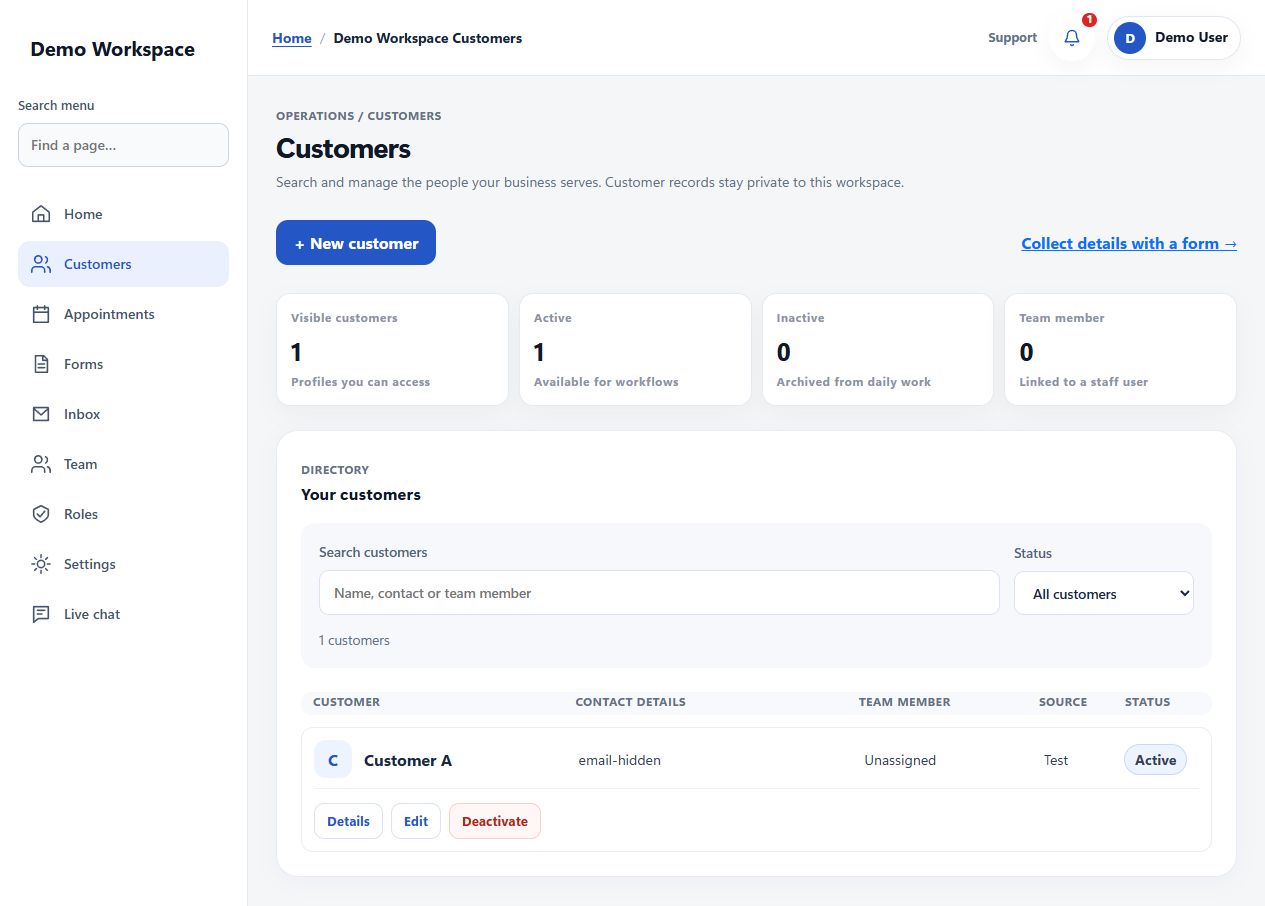
Customers are the people whose information you manage. Their profile keeps contact details and history together so your team can understand what happened and what needs attention.
- Open Customers. Add a customer with the required details, or open an existing profile from the list.
- Review and update. Use Edit customer to correct their details. Activate or deactivate the profile using the existing status action when you have permission.
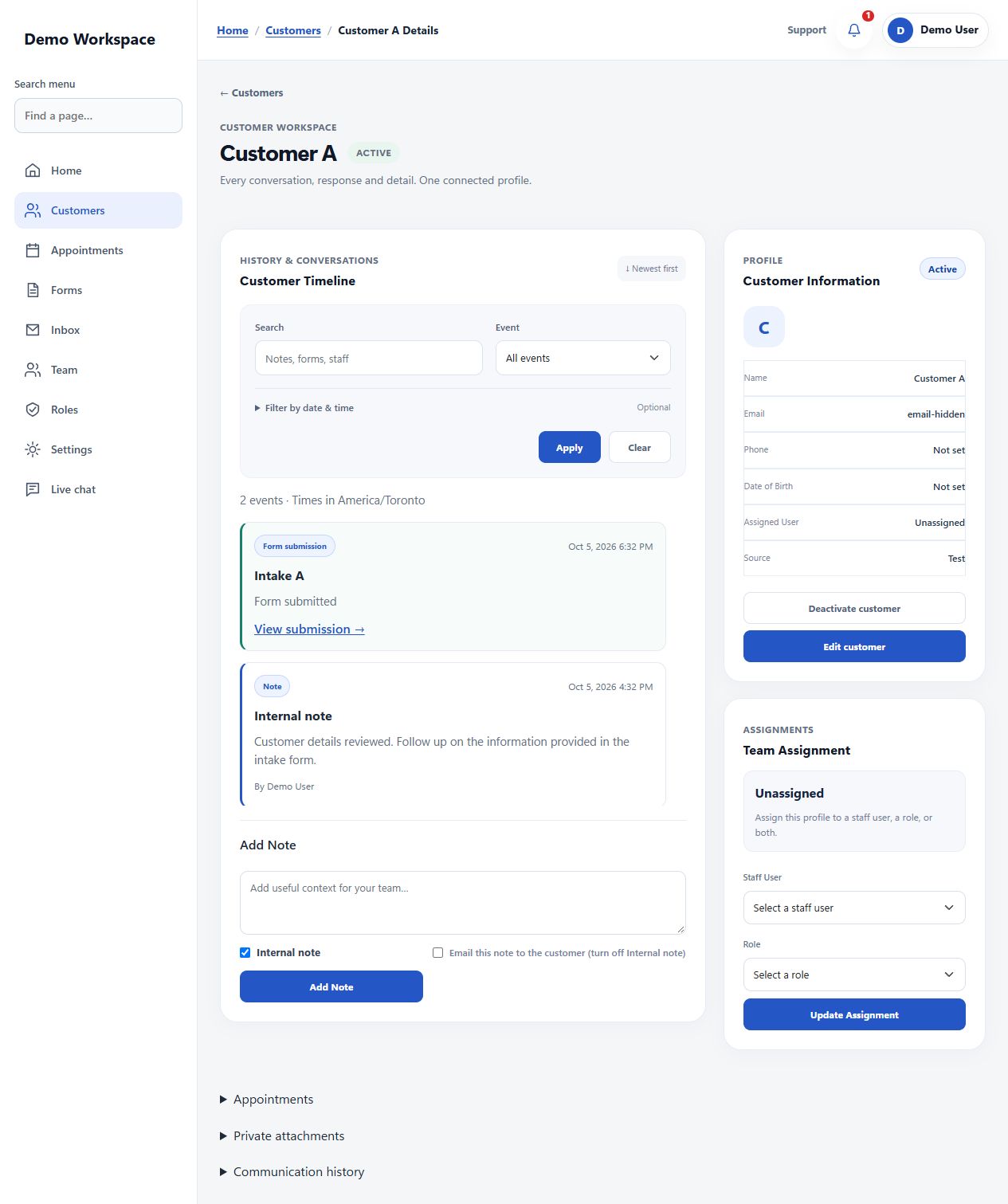
- Read the timeline. Notes, form submissions and activity appear newest first. Search the text, choose an event type, or set From and Until dates to find older entries.
- Add context and responsibility. Write a note and assign a team member or role in Team Assignment. Save the assignment to keep responsibilities clear.
Create once. Share when you need it.
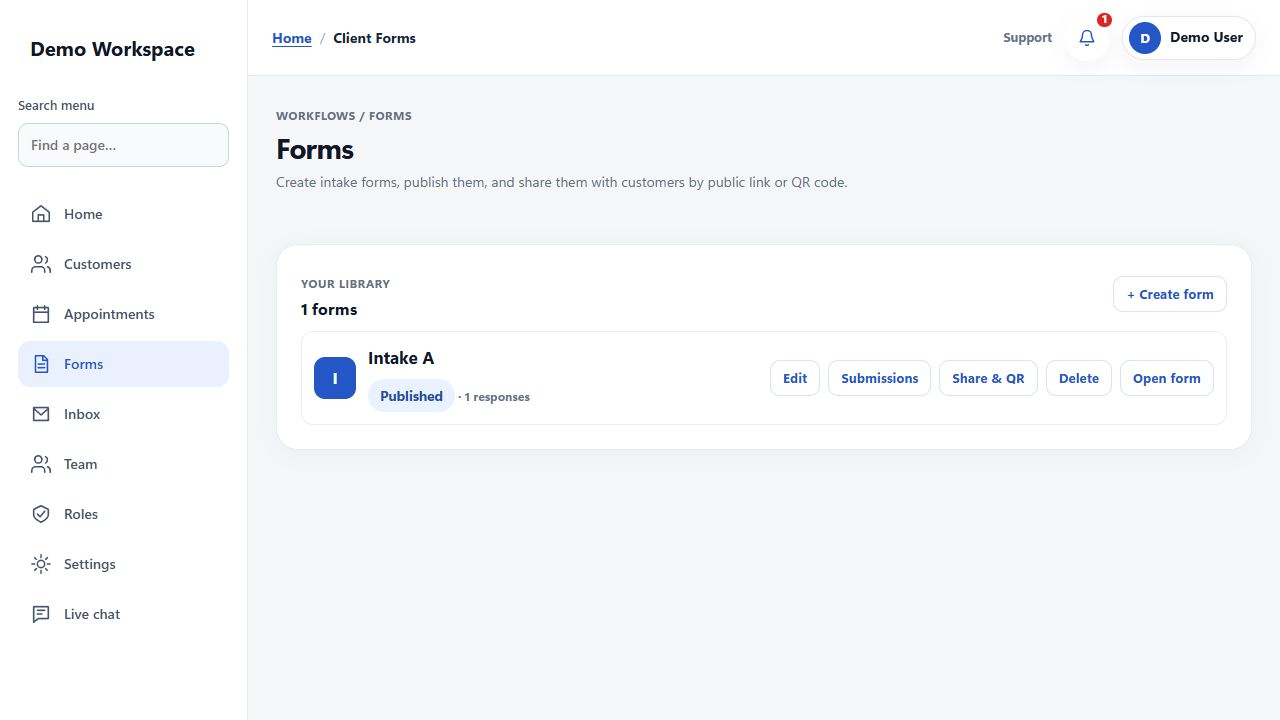
Forms collect structured information from customers. You control the questions, review responses and use the share page to give people the right link.
- Create a form. Open Forms → Create form. Set the title, add or edit fields, choose required questions and arrange their order.
- Check and publish. Save the form and use Open form to review it. A published form can be reached through its public link.
- Share the link or QR code. Open Share & QR. Copy the link or use the QR code so customers can open the form on their phone.
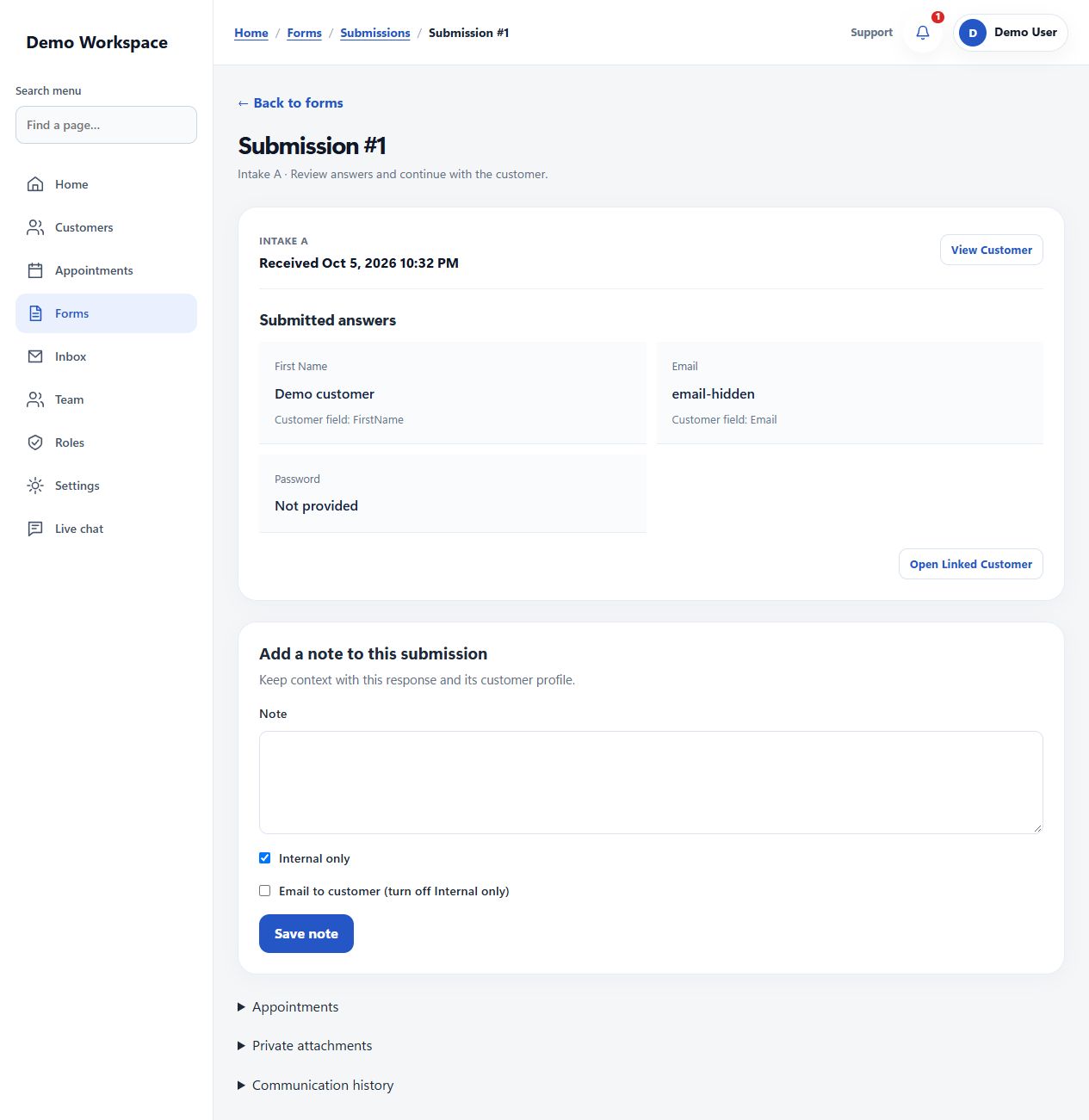
- Turn a response into a customer. Open Submissions on the form card, then open the response. Use the convert-to-customer action when available. ARoute maps supported name, email, phone and date-of-birth fields into a new profile and links the original response to it. Review the resulting details and correct anything missing. Your role and workspace limits determine whether this action is available.
Give each person the access they need
Team is where authorized workspace users add or invite people, update their accounts and manage access. Roles group permissions so people can use the tools relevant to them.
Add or invite
Open Team and choose Add staff member or Invite staff. Complete the required fields and assign an appropriate role. Review the account details before saving.
Manage access over time
Use Details or Edit to review an account. Deactivate access when it is no longer needed and reactivate it when appropriate. Manage roles only when your account has permission.
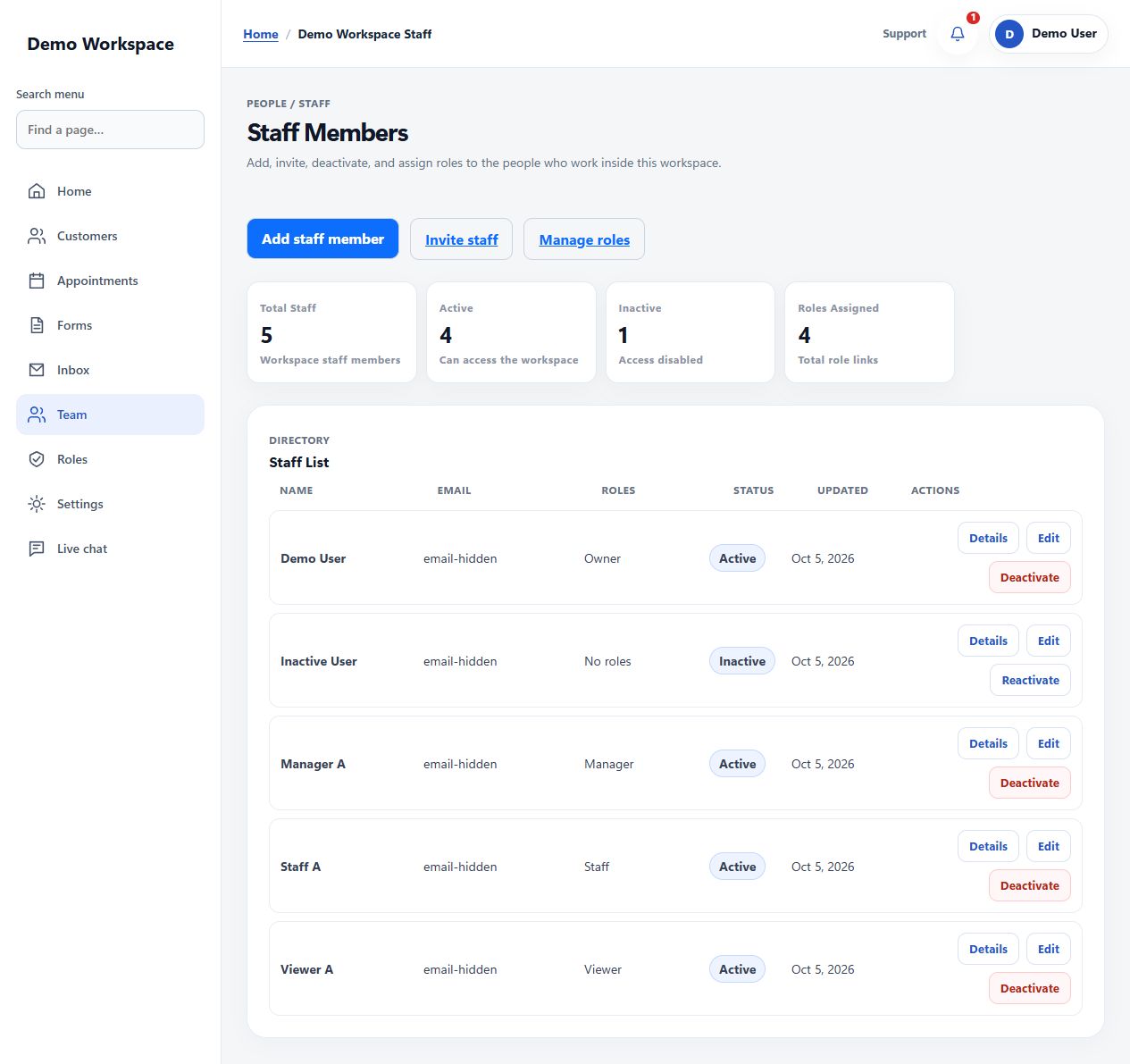
- Define the role. Open Team → Manage roles. Choose the permissions that the group of users needs, then save the role.
- Assign the role. Add or edit a team member and select the appropriate role. Review their access when responsibilities change.
- Assign customer responsibility. On a customer profile, use Team Assignment to select a person, a role, or both. This records who is responsible for that customer; workspace roles separately control what actions people can perform.
Appointment booking and scheduling
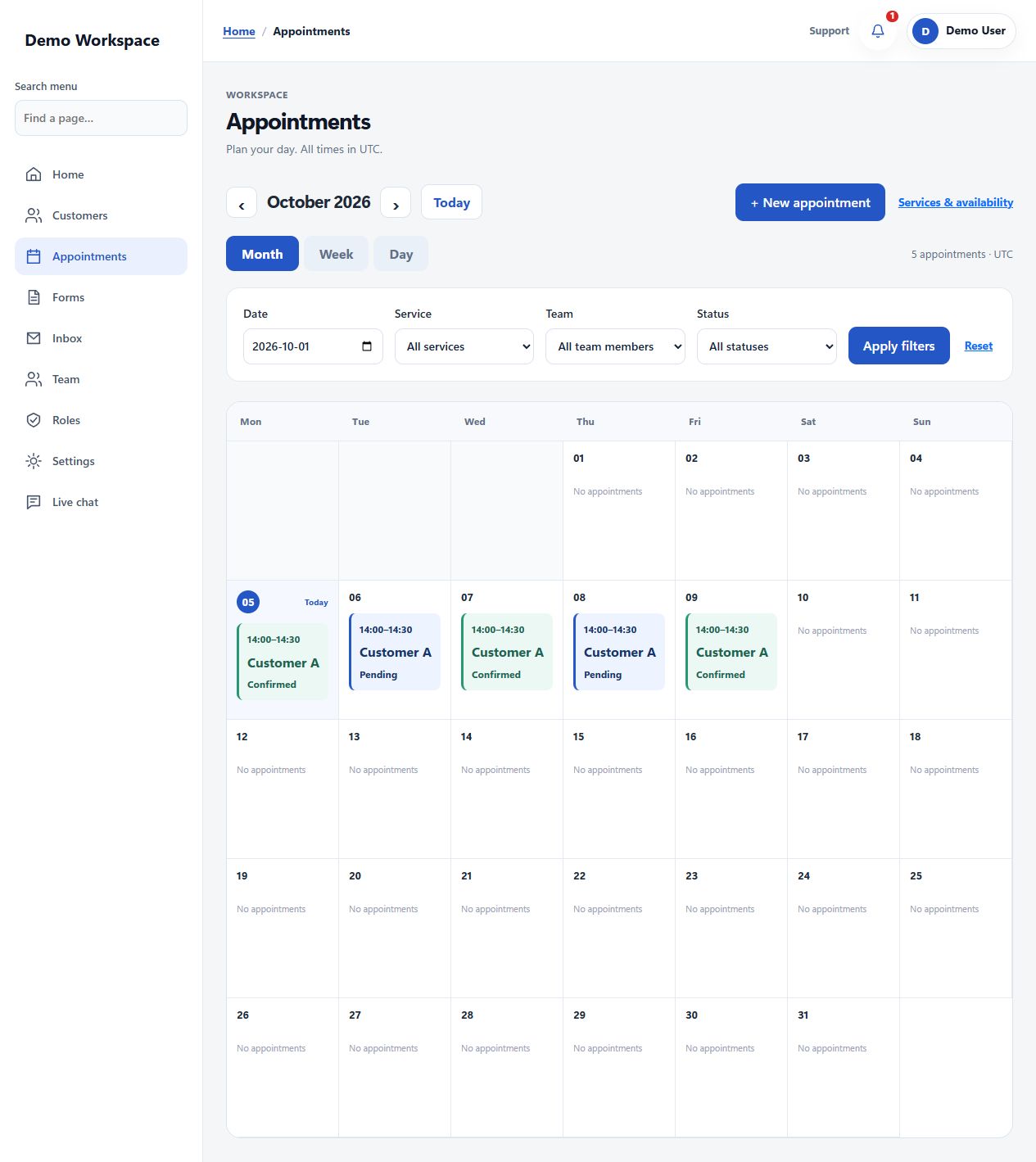
Bring customer information and your calendar together. Use day, week or month views to see appointments, and filter by service, team member or status.
- Set up services and availability. In Appointments → Services & availability, define service durations, business and staff hours, and blocked time. Set your workspace time zone before sharing booking links.
- Enable booking on a form. Turn on public booking in workspace settings and allow appointment booking on the form. Customers can choose an available service, team member and time. Availability is checked again when the booking is saved.
- Manage changes. Open an appointment to review its customer and timing. Reschedule it or record its outcome, including completed, cancelled or no-show, according to your permissions.
- Configure reminders. Enable appointment emails, select the events you want to communicate and choose reminder timing. Existing workspaces need to configure these preferences before messages are sent.
Cloud records, backups and system emails
Your saved customer records, form responses and workspace information are stored in ARoute's cloud database, rather than only in the browser on one device. Sign in with an authorized account and an internet connection to continue from another device.
Backups protect database records
The current production database uses encryption and automated backups with seven days of retention. These backups support operational recovery; they are not an unlimited archive or a self-service undo button. Contact support if you need help with lost information.
Understand email delivery
ARoute sends account-related emails, including email verification and password-reset messages. Keep the account email correct and check spam or junk if a message is missing. Appointment updates and reminders are configured separately in your workspace. Customer-facing notes can also be emailed when enabled; internal notes remain internal. Communication history shows provider acceptance or failure, not guaranteed inbox delivery.
Access when you need it
The workspace is hosted online and does not require your own computer to stay switched on. Access depends on your account permissions, internet connection and service availability. Maintenance or outages can occasionally interrupt access.
Keep your team in sync
Save changes before leaving a page. Other authorized team members can then access the saved records according to their permissions. Use customer notes and assignments to give the next person useful context.
Before you get started
Why can't I see every menu or action?
Your workspace role controls which pages and actions you can use. Ask the person managing your workspace to review your permissions.
How do I find an older customer interaction?
Open the customer profile and use the timeline search, event filter and date range. Clear the filters to return to the full history.
Can a customer fill out a form on a phone?
Share the published form link or QR code. Open the link on a phone yourself before sharing it, and check that the questions and required fields are correct.
Where can I get help?
Use Live chat in your workspace or the chat button on the website. When signed in, your account information is used so you do not need to enter it again.
Are these real customer records?
No. These screenshots come from ARoute's local test workspace. The example data is for demonstration, and email addresses are hidden.